
Table of Contents
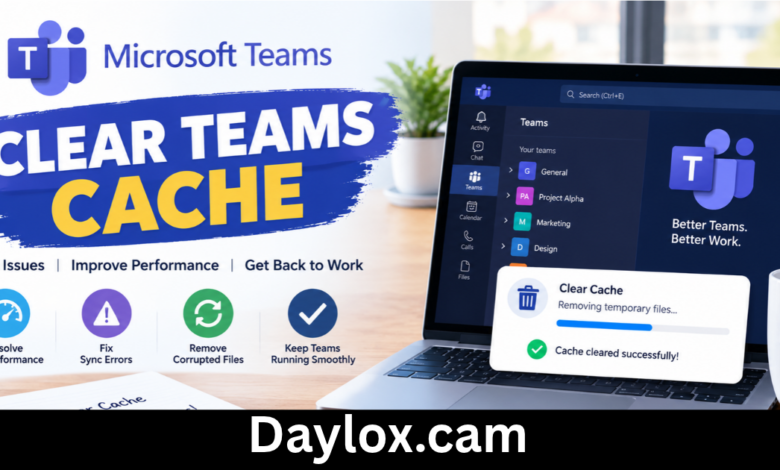
Microsoft Teams is widely used for workplace communication, online meetings, collaboration, and file sharing. However, users sometimes experience slow performance, outdated profile pictures, display glitches, clear teams cache or problems opening the application. In some cases, clearing the Teams cache can help resolve these local application issues.
The cache contains temporary files that help Teams load content efficiently. When cached data becomes outdated or corrupted, the application may not behave as expected. Learning how to clear Teams cache can help you troubleshoot selected problems without reinstalling the entire application.
1. What Does Clearing the Teams Cache Mean?
The Microsoft Teams cache consists of temporary files stored on your device. These files help the application load frequently used information, images, and other resources more quickly.
Over time, some cached files may become outdated or damaged. This can contribute to certain display or performance problems.
Clearing the Teams cache removes selected local cached data so the application can rebuild it when restarted. It does not uninstall Microsoft Teams.
However, clearing the cache is not a universal solution. Microsoft specifically advises against using it as a first step for issues such as missing chat messages, channels that do not appear, incorrect unread counts, or chat history that fails to load. It can also remove diagnostic logs needed to investigate these problems.
2. How to Clear Teams Cache on Windows
The steps depend on whether you use the new Microsoft Teams application or the classic version.
Method A: Clear the Cache in New Teams
For Windows 10 and Windows 11 users running new Teams, follow these steps:
- Save any work and completely quit Microsoft Teams. Right-click the Teams icon in the system tray and select Quit.
- Press Windows + R to open the Run dialog box.
- Copy and paste this path:
%userprofile%\AppData\Local\Packages\MSTeams_8wekyb3d8bbwe\LocalCache\Microsoft\MSTeams - Press Enter to open the folder.
- Delete the files and folders inside the cache directory.
- Restart Microsoft Teams and sign in if prompted.
Delete the contents of the specified cache directory, not unrelated files elsewhere on your computer. If Windows reports that a file is in use, check that Teams has fully closed before trying again.
Method B: Reset New Teams Through Windows Settings
You can also reset the application through Windows:
- Open the Windows Settings app.
- Select Apps, then Installed apps.
- Search for Microsoft Teams.
- Open the menu beside the new Teams app and select Advanced options.
- Under Reset, select Reset.
- Open Teams again.
Important: Resetting the app deletes its local app data and may remove personalization settings. Review this option before proceeding.
Method C: Clear the Cache in Classic Teams
If you still use classic Teams, the cache location is different.
- Quit Microsoft Teams completely.
- Press Windows + R.
- Enter the following path:
%appdata%\Microsoft\Teams - Press Enter.
- Delete the contents of that directory.
- Restart Teams.
If this folder does not exist, you may be using new Teams, which stores its cache elsewhere.
3. How to Clear Teams Cache on Mac
Mac users can clear the cache manually. The correct location depends on the version of Teams installed.
Clear the Cache in New Teams for macOS
- Quit Microsoft Teams using the Dock menu or press Command + Q.
- Open Finder and navigate to Applications, then Utilities.
- Open Terminal.
- Enter the following command and press Return:
rm -rf ~/Library/Group\ Containers/UBF8T346G9.com.microsoft.teams - Enter the second command and press Return:
rm -rf ~/Library/Containers/com.microsoft.teams2 - Restart Microsoft Teams.
These commands permanently remove the specified directories. Before running them, check the paths carefully and make sure Teams is closed.
Clear the Cache in Classic Teams for macOS
For classic Teams, quit the application and open Terminal. Run:
rm -r ~/Library/Application\ Support/Microsoft/Teams
Then restart Teams.
Use only the command that matches your installed Teams version. If you are uncertain which version you have, consult Microsoft’s official instructions or ask your IT support team.
4. How to Clear Teams Cache in a Web Browser
If you use Microsoft Teams through a browser, its cached data is managed by that browser rather than the desktop application’s cache folder.
To troubleshoot browser-based Teams:
- Close unnecessary Teams tabs.
- Open your browser’s privacy or browsing-data settings.
- Find the option to clear cached images and files.
- Select an appropriate time range.
- Clear the cache and reopen Teams.
Browser menus differ, so consult the support instructions for Chrome, Edge, Safari, or your preferred browser.
Be careful when selecting additional options. Clearing cookies or site data can sign you out of Teams and other websites, requiring you to log in again.
You can also test Teams in a private or incognito window to see whether a browser cache or extension is contributing to the problem.
5. What Problems Can Clearing the Teams Cache Fix?
Clearing the cache may help with some local application problems, including:
- Teams displaying outdated profile pictures or visual elements.
- Certain interface or rendering glitches.
- Selected performance problems caused by damaged temporary files.
- Some issues that occur after application updates.
Results are not guaranteed because Teams problems can also be caused by network connectivity, account permissions, software updates, or Microsoft service interruptions.
If the application remains slow after clearing the cache, restart your computer, check for Teams updates, and test your internet connection.
For missing chats, absent channels, incorrect notification counts, or other synchronization problems, investigate the account or service issue instead of immediately deleting diagnostic logs.
6. What Happens After You Clear the Teams Cache?
When you clear the Teams cache, the application rebuilds the temporary files it needs. As a result, the first launch may take longer than usual.
You may need to sign in again, depending on the method used and your device’s configuration. Some preferences or local application data may also need to be restored if you reset the app rather than only clearing its cache.
Your organization’s cloud-stored Teams messages and files are generally not deleted by removing the local cache. However, clearing the cache should not be confused with deleting account data, chat messages, or files directly from Teams.
If you use a managed work computer, follow your organization’s IT policies before deleting application data or running Terminal commands.
7. Best Practices for Preventing Microsoft Teams Issues
Regularly clearing the cache is not necessary for every user. Instead, follow a few practical maintenance habits:
- Keep Microsoft Teams and your operating system updated.
- Use a stable internet connection for meetings and file sharing.
- Quit and restart Teams when the interface becomes unresponsive.
- Check whether Microsoft 365 services are experiencing an outage.
- Avoid deleting files outside the documented cache locations.
- Contact your IT administrator if the issue affects your organization or multiple users.
These steps can help you identify the actual cause of a problem instead of repeatedly clearing temporary files.
Frequently Asked Questions
1. How do I clear Teams cache quickly?
First quit Teams completely. Then open the cache location appropriate for your operating system and Teams version, delete the cache contents, and restart the application.
2. Will clearing the Teams cache delete my messages?
Clearing the local cache is not intended to delete cloud-stored messages or files. However, it removes local temporary data, and resetting the app can remove personalization settings. Do not manually delete messages or other account data when troubleshooting.
3. Why is my Teams cache folder missing?
You may be using new Teams rather than classic Teams. The two versions use different cache locations, so verify which application you have before following instructions.
4. Should I clear Teams cache regularly?
Usually, no. Clear it when you have a specific local application problem and Microsoft’s troubleshooting guidance indicates that it may help.
5. Does clearing the Teams cache sign me out?
It may, depending on your application version and the method used. Be prepared to sign in again if Teams requests your credentials.
6. How long does Teams take to rebuild its cache?
The time varies depending on your device, network connection, and how much data needs to be loaded. The first launch after clearing the cache may be slower than usual.
7. What should I do if clearing the cache does not work?
Restart Teams and your computer, check for updates, verify your network connection, and review Microsoft service status. For missing chats or channels, contact your IT administrator if the issue persists.
Conclusion
Knowing how to clear Teams cache can help you troubleshoot selected Microsoft Teams performance and display problems on Windows, Mac, and web browsers. The key is to use the correct method for your Teams version and remove only the intended cached data. clear teams cache Clearing the cache is not the right fix for every issue, particularly problems involving missing chats, channels, or notifications. Start with Microsoft’s official guidance, protect important local settings, and seek IT support when necessary. With the right troubleshooting approach, you can resolve many application issues without unnecessary reinstallations.